1. Sign up
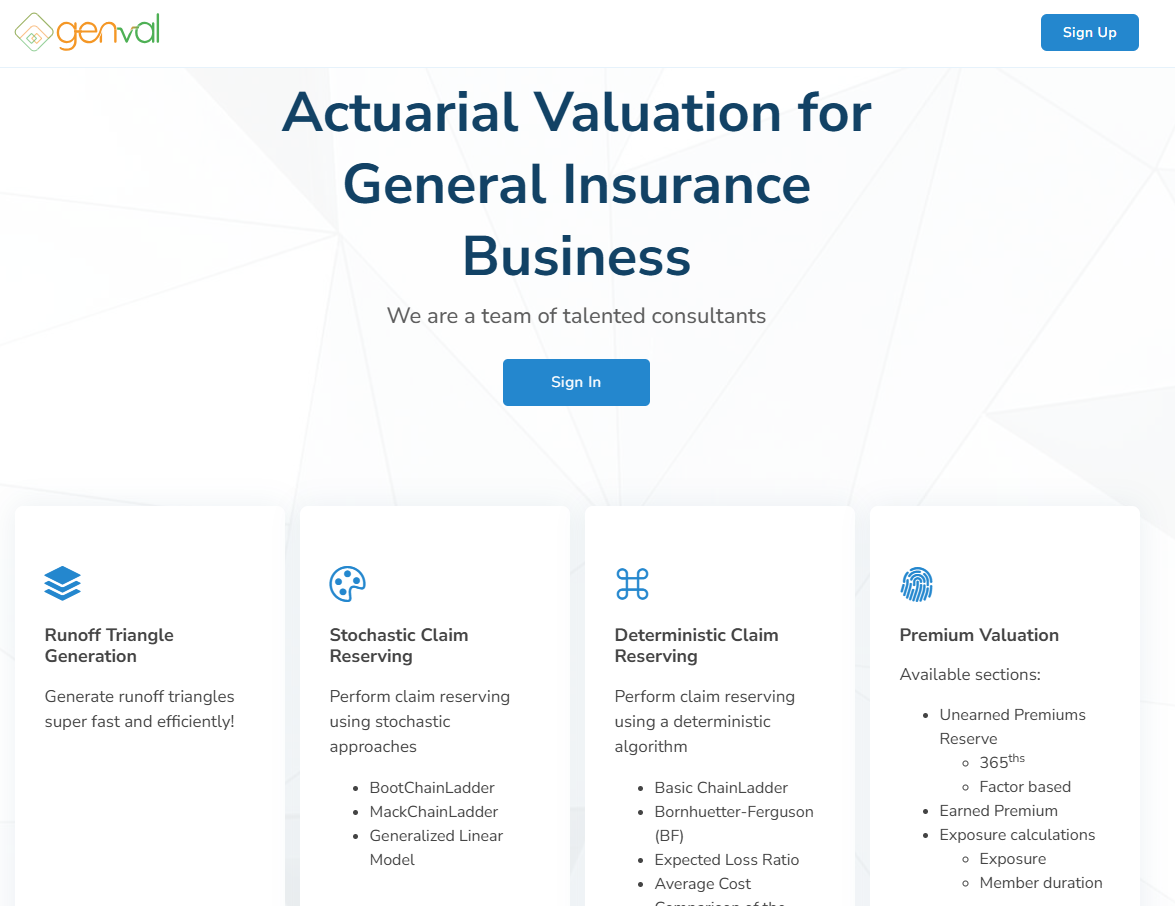
Click signup on the landing page. You will be directed to the account creation tab where you will enter the organization details and personal details.
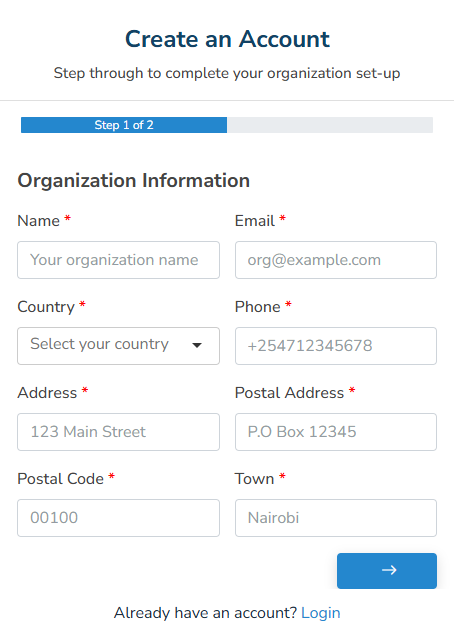
Step 1 of 2: Organization Information
- Name* – Enter your organization’s official name.
- Email* – Provide a valid organization email address (e.g., org@example.com).
- Country* – Select your organization’s country from the dropdown list.
- Phone* – Enter the organization’s contact phone number (include country code, e.g., +254712345678).
- Address* – Input the physical address of your organization (e.g., street name and number).
- Postal Address* – Provide the organization’s mailing or P.O. Box address.
- Postal Code* – Enter the correct postal/ZIP code for your location.
- Town* – Indicate the town or city where your organization is located.
- Next Button (→) – Click this button to proceed to Step 2.
Step 2 of 2: Administrator Information
- First Name* – Enter the first name of the account administrator.
- Last Name* – Enter the administrator’s last name.
- Email* – Provide the administrator’s work email (must be valid and accessible).
- Password* – Password for the administrator account (Must contain at least 8 characters with a letter, number, and symbol).
- Confirm Password* – Re-enter the same password to confirm accuracy.
- Terms of Service and Privacy Policy* – Check the box to agree to the software’s terms and privacy policy (required for registration).
Click the Back Button (←) to return to Step 1 if you need to edit organization details.
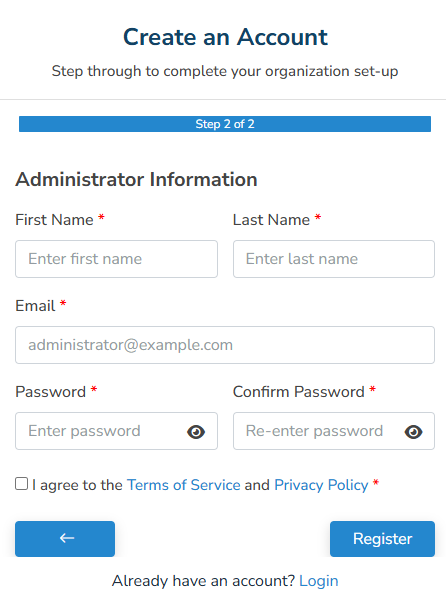
After all details are entered, click the “Register” button to submit.
After successful signup, you will get a pop-up stating “Registration successful. A verification email has been sent to you.” Check your email for the verification link (check you spam folder if missing from the mailbox).
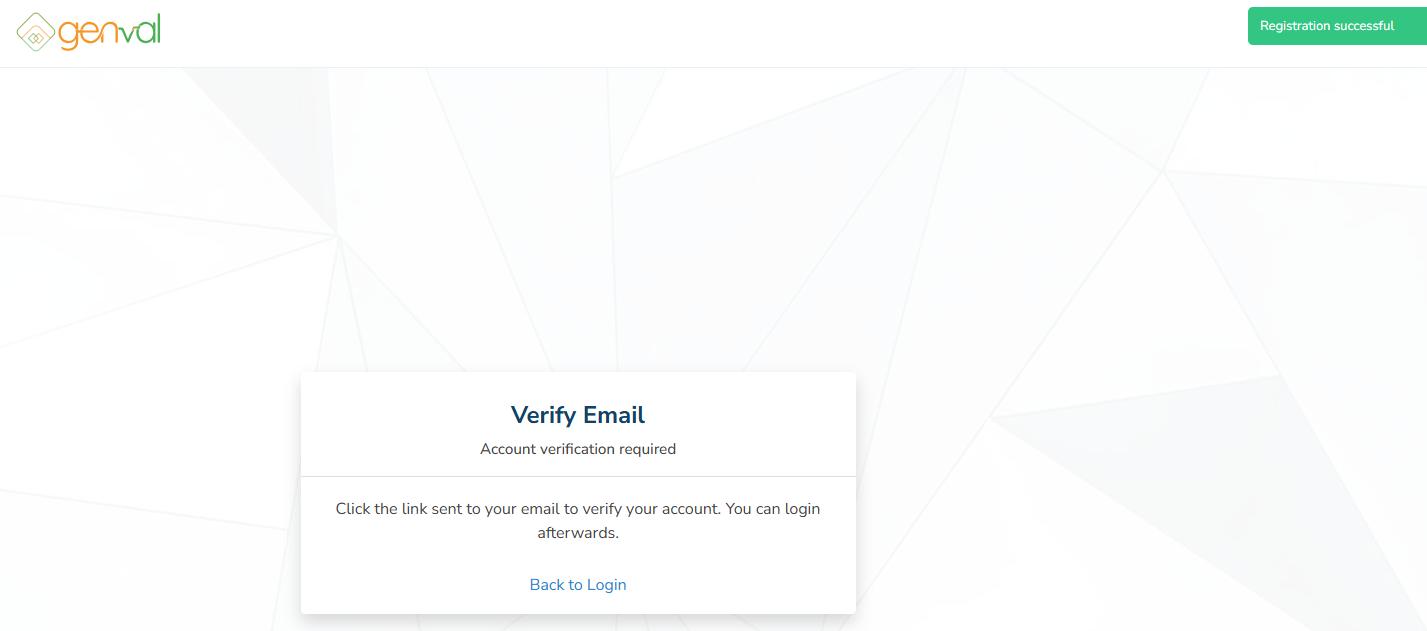
Click on the link to verify your credentials. You will be redirected to a page with the message “Verifying link...”. Once verification is complete, you will see a popup reading “Email verified. You can now login”.