6. Generating Premiums
To generate earned premium, upload the premiums data by clicking on the Data Upload button or the File Picker icon on the sidebar.
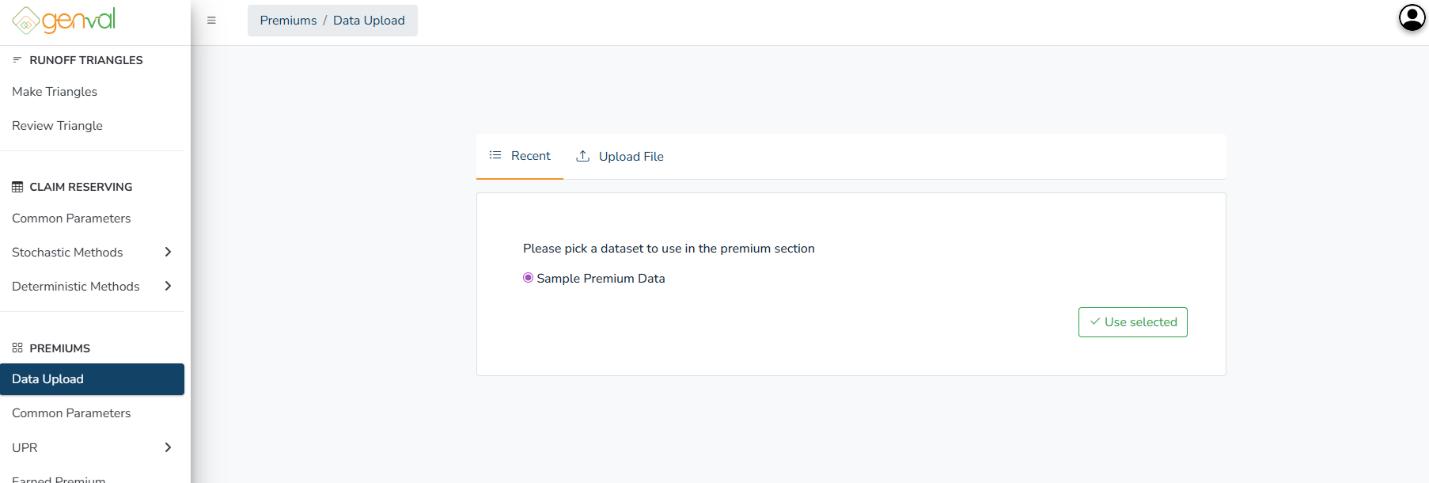
Click on Use Selected to preview and proceed to the parameters. Select the start date and end date columns.
Next, click the Earned Premium sidebar item. You’ll be needed to add more parameters:
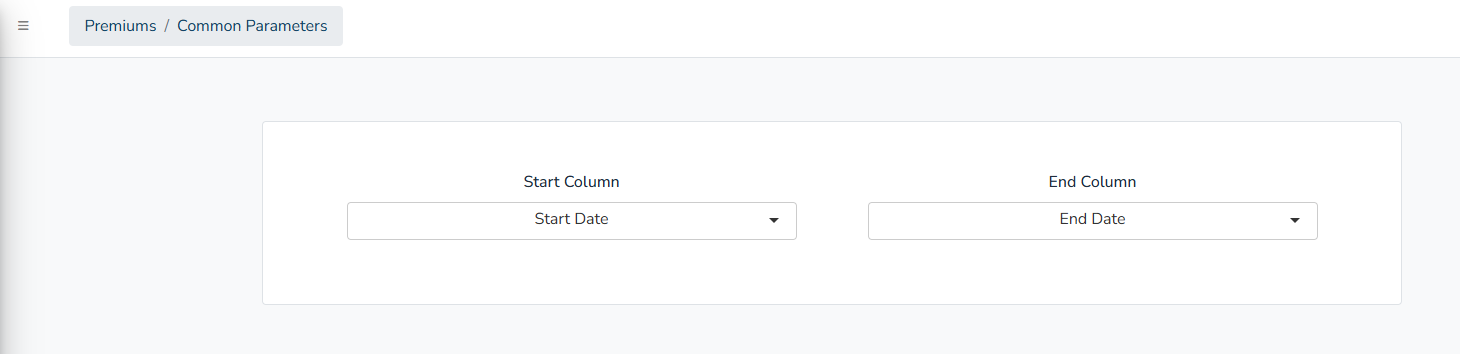
Start Column - Selects the column that contains the policy start date (e.g., “Start Date”). Used to determine when coverage begins.
End Column - Selects the column that contains the policy end date (e.g., “End Date”). Used to determine when coverage ends.
Premiums Column - Specifies the column that holds premium-related data (e.g., “Class of Business” or “Premium Amount”). This is the value to be earned over time.
Start and End Dates - Defines the global time frame within which earned premiums are calculated. Policies outside this range are excluded.
Period Type - Determines the unit of time used for the earning calculation – e.g., Months, Quarters, or Years.
Number of Months - Sets the number of months per calculation period (e.g., 4 means premiums are grouped or earned in 4-month intervals)
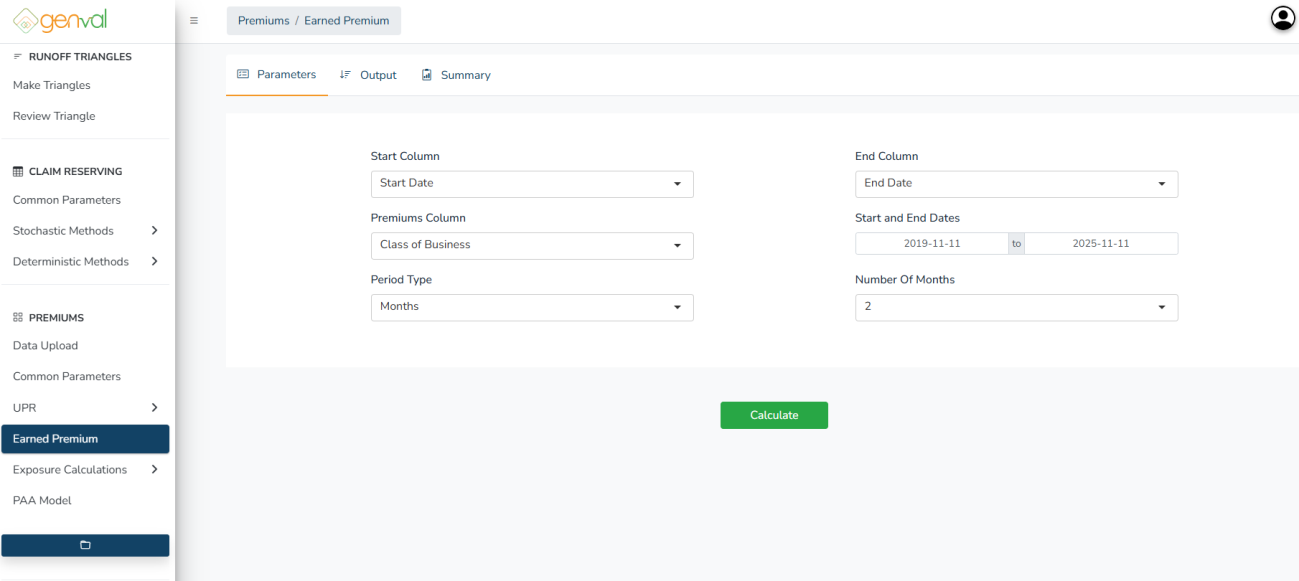
Click on the Calculate button to proceed. You will then be directed to preview the calculated earned premiums. You can download the file for external or later use.
To pass the generated earned premium to available files without uploading it again, you’ll need to summarize it by clicking the Summarize Earned Premium button. Select the wide format, which is compatible with the triangles format.